Swiss remote support software from Baar
Remote support on your own server.
Your team sees and controls your customers’ screens. End-to-end encrypted, through your own server, with nothing to install at the customer’s end. The customer approves every session, or for unattended access the device once.
Non-binding, ends automatically, no credit card.
Self-hosted End-to-end encrypted Sessions not recorded Swiss provider
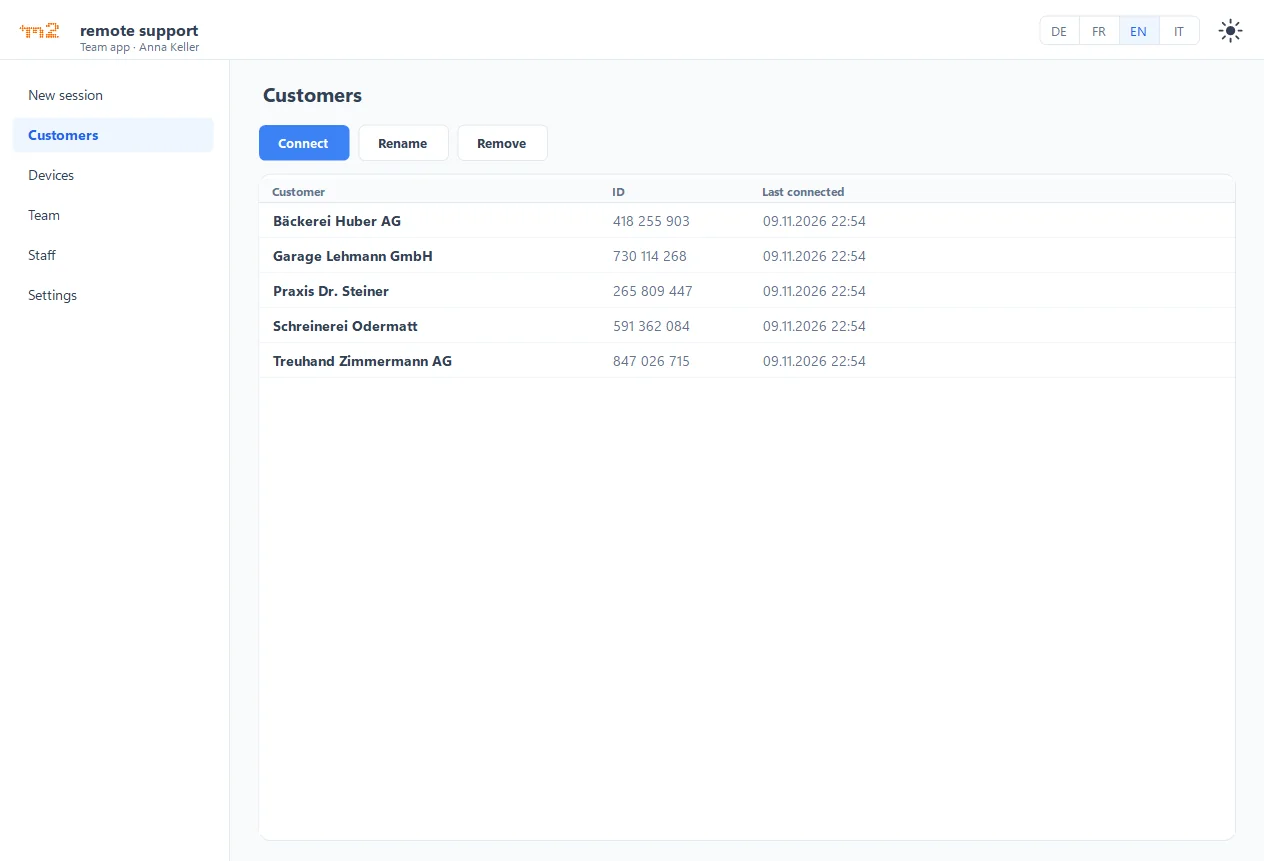
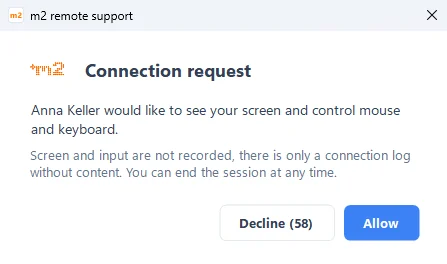
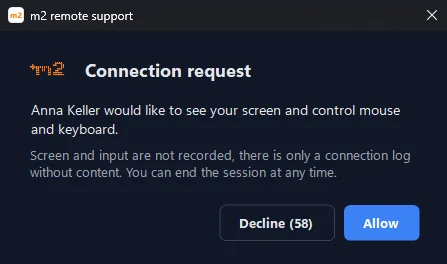
How a session starts
Invite
Send a link from the team app, valid for 15 minutes.
Start
The customer opens the link, downloads the customer app and starts it.
Allow
They click “Allow” and can end the session at any time.
Self-hosted and security
Server, certificate authority and log run on your side.
m2 remote support runs on your own Windows or Linux server, under your domain. The team app and the customer’s PC negotiate the key for each session between themselves; your server only relays data it cannot read.
Diagram: your team app and the customer PC connect via your own server. Between team app and customer PC, the connection is end-to-end encrypted. The server only relays the data and only ever sees it encrypted.
Your own server
Windows or Linux, under your domain. Only TCP 443. No session data at m2.
Your own certificate authority
Only your staff get in. You revoke access immediately.
No recording
Only a log with time, person, duration and data volume. No content and no IP addresses, deleted after 90 days.
The customer stays in control
They approve every session, or a device once for unattended access. There is no permanent password.
Features
What m2 remote support does
See and control the screen, exchange files and work as a team. For Windows 10 and Windows 11.
Remote control
You see the Windows PC’s screen live and control mouse and keyboard.
File transfer
Files and folders in both directions, also by drag and drop from Explorer.
Admin mode
Optional: in the session you also handle UAC prompts, the lock screen and windows with admin rights.
Teamwork
Your team sees who is online and helps each other, even directly in a customer session.
Automatic updates
The customer app, the team app and the server update themselves.
Your own branding
Your logo, colour and company name on the download page and in the customer app. Included in every subscription.
Show all features
Invitation link
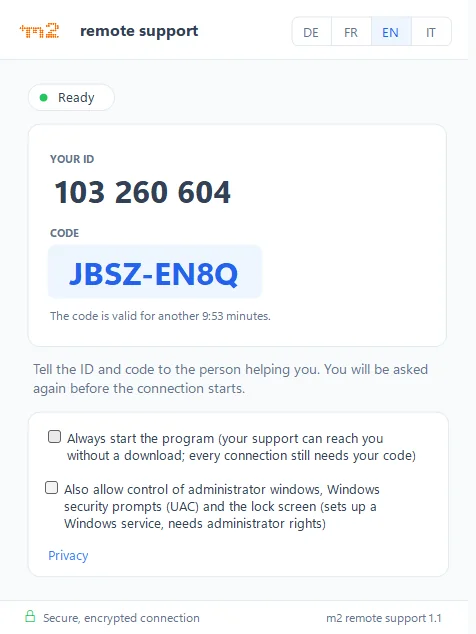
You send the customer a link that is valid for 15 minutes, or they tell you their ID and a code over the phone.
No installation for the customer
The customer app is a single EXE of about 300 KB. It runs without installation, without admin rights and without port forwarding.
Shared clipboard
Copied text moves in both directions, and the customer’s bar shows when the clipboard is used.
Switch sides
With “Show my screen”, the customer sees your screen while you keep control.
Multiple monitors
You choose the main screen, a single monitor or all monitors together.
Reconnect after restart
If the customer PC restarts, the session reconnects within 30 minutes without a new code; with admin mode already at the lock screen.
Unattended access
For maintenance with nobody present: the customer approves a device once, and every access stays visible. 10 devices included in the subscription.
Multiple sessions at once
You support several customer PCs in parallel; billing is per concurrent session.
Saved customers
Returning customers stay bound to their device and still only connect with a code that the customer types in themselves.
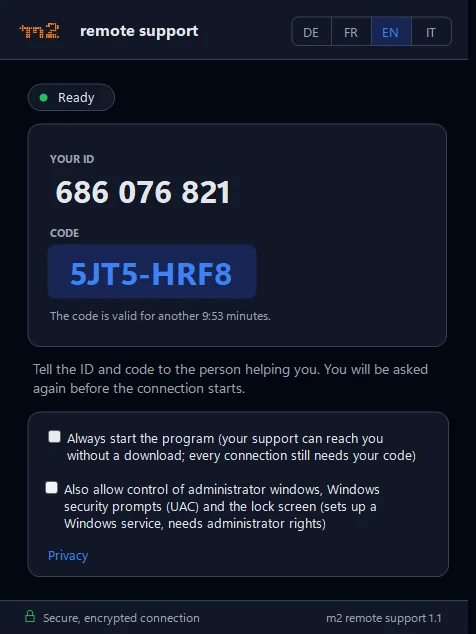
Four languages
The team app and the customer app are available in German, French, English and Italian.
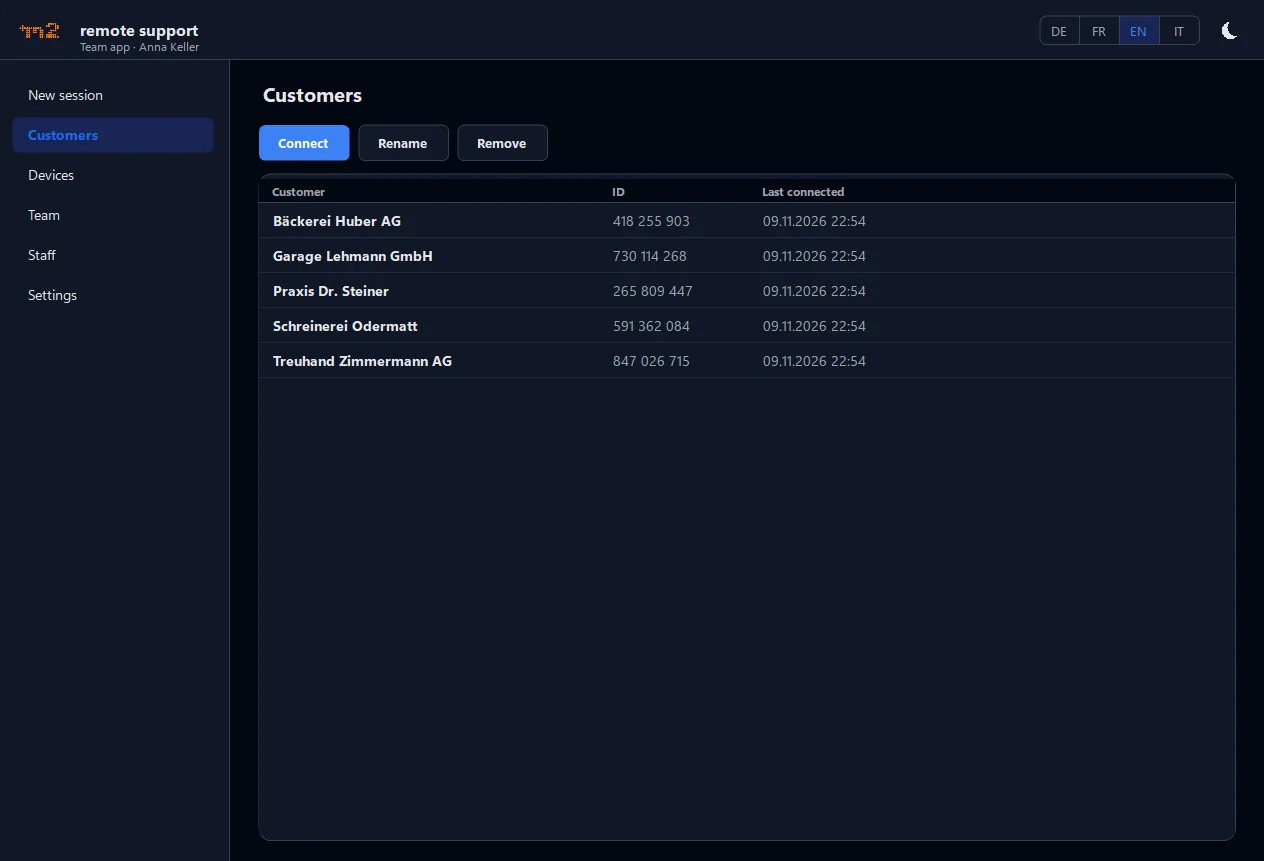
Dark mode
The team app can be shown in light or dark mode and also works on the road without a VPN.
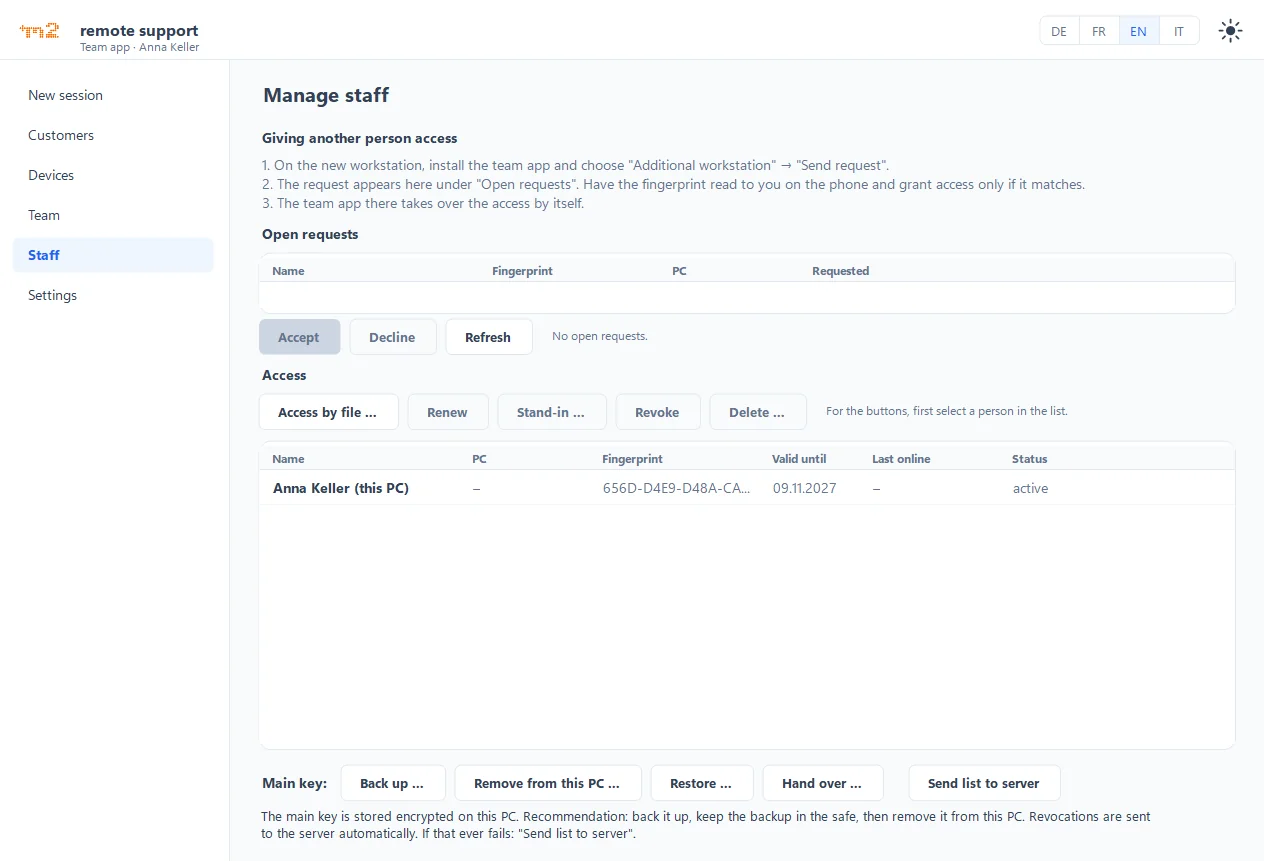
Access on request
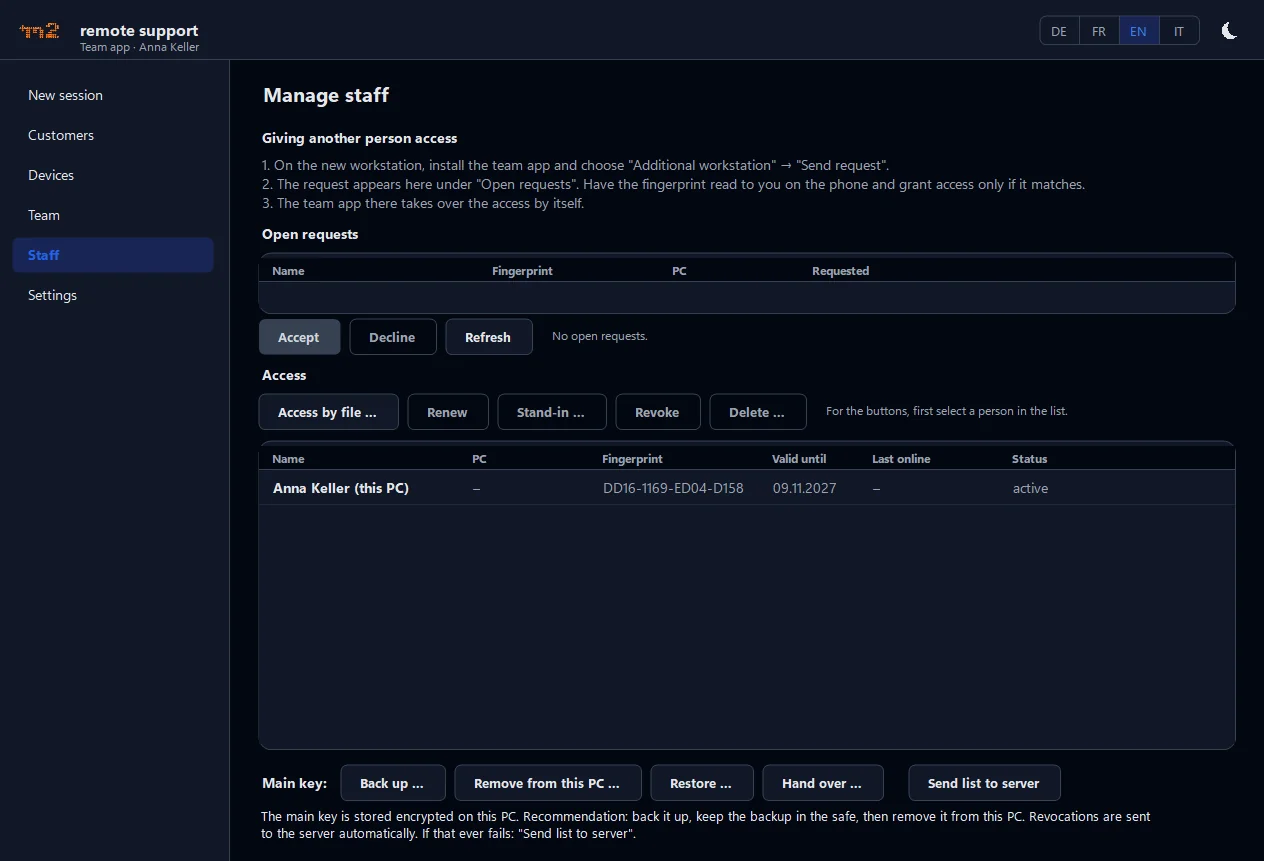
New staff request their access directly from the team app, and you decide who gets in.
- Request access: Whoever manages the certificate authority compares the fingerprint over the phone and accepts or rejects the request.
- Revoke instantly: Access can be revoked at any time with immediate effect.
Pricing
You pay per concurrent session, not per person.
Billing is per channel, that is per concurrent session. The number of staff and customer PCs is not limited.
Full control Self-hosted
For IT service providers and companies with their own infrastructure
CHF 190.–per channel per year
equals CHF 15.85 per month
Annual subscription, renews yearly
Included:
Server software (MSI for IIS or package for Linux) on your server Your own domain Your own certificate authority Customer app for your instance Your own branding on the download page and in the customer app Unattended access for 10 devices Automatic updates during the term Support by e-mail
Each further 10 devices for unattended access: CHF 50.– per year Self-hosted monthly
For changing needs, without an annual commitment
CHF 25.–per channel per month
Cancellable monthly, no setup fee
Included:
Same services as the annual licence From 8 months of use per year, the annual licence is cheaper
Each further 10 devices for unattended access: CHF 5.– per month
Included in every subscription: your own branding and unattended access for 10 devices. You raise or lower further device packs at any time in the team app, as with channels. Buy directly in the team app: install the server, get the trial licence, then buy.
How to calculate
A channel is a concurrent session, that is a live connection to a customer PC. To run three sessions at the same time, you need three channels. Staff and customer PCs are unlimited.
One staff member with two live sessions uses two channels. Five staff members with one live session each use five channels. Anyone not connected uses none.
A team of 5 staff members who support at most 2 customers at the same time needs 2 channels.
2 channels × CHF 190.–CHF 380.– per year
What do you pay for remote support today?
Do the maths with your own figures. Your entries stay in your browser.
With m2 remote support
CHF 380.–
2 channels per year
Difference per year
–
based on your figures
All prices excl. VAT. Compare the features as well: m2 remote support works only with Windows PCs on the customer side.
FAQ
Frequently asked questions
Installation, data, admin mode, updates, systems, trial and cancellation.
Your question is not listed? Write to us.
Does the customer have to install anything?
No. The customer starts a small file (about 300 KB). No installation, no admin rights and no port forwarding are needed.
Can anyone connect without the customer’s consent?
No. Every session needs the customer’s approval, including saved customers. They only connect with a code that the customer types in themselves. There is no permanent password. For unattended access, the customer releases a device once; after that, no approval is needed per session. They can switch it off at any time.
Where does the data go?
Through your own server, always end-to-end encrypted. Even the server cannot read the content: it only relays encrypted data.
What is stored?
Only a connection log with start time, device ID, staff member, duration and data volume, without IP addresses. It is deleted automatically after 90 days (configurable). Screen, input, clipboard and files are not recorded.
What is a concurrent session?
A live connection to a customer PC, also called a “channel”. The number of staff and customer PCs is not limited. To run three sessions at the same time, you need three channels.
Can you handle UAC prompts and the lock screen?
Yes, with the optional admin mode. The customer switches it on once in the customer app (with admin rights), or your IT deploys it. After that, UAC prompts, the lock screen and windows running with admin rights can also be operated during a session. In admin mode, after the customer’s PC restarts, the session reconnects by itself, right up to the lock screen (on by default, within 30 minutes). Without admin mode, the customer app runs without admin rights and none of this is possible.
How do updates reach my customers?
Automatically. The installed customer app fetches new versions from your server, never during a session, and your server updates itself at night.
Is there unattended access?
Yes, included in the subscription for 10 devices. You add more devices in packs of 10: CHF 5.– per month with the monthly subscription, CHF 50.– per year with the yearly subscription. You raise or lower the packs at any time in the team app, as with channels. In a session, the customer releases a device once with administrator rights and chooses whether a signed-in user is asked first. Only staff in the device group set in the team app may connect. Every access is visible on the device and recorded in the Windows event log. The customer can switch the release off at any time in the customer app. Without a release, every session needs the consent of a person at the device.
Can someone misuse my branding?
No. The customer app only accepts branding that your own instance has signed with its master key. A foreign or hijacked server cannot show your customers a different logo. The download page and the customer app show your logo, company name and colour. Branding is included in every subscription, monthly or yearly, and in the trial license.
Which systems are supported?
Customer PCs: Windows 10 (version 1903 or later) and Windows 11. Team app: Windows 10 and Windows 11. The server runs on Windows Server (IIS) or Linux, also as a Docker container. Other systems for customer PCs such as macOS, Linux, Android or iOS are not currently available.
What does the server need?
Windows Server with IIS (WebSocket protocol) and the .NET 10 Hosting Bundle, or Linux with ASP.NET Core Runtime 10 as a systemd service behind Caddy or nginx, or as a Docker container. The setup installs missing prerequisites itself (IIS, WebSocket protocol, Hosting Bundle or runtime). You also need a TLS certificate; inbound, only TCP 443 is required. The optional admin mode needs admin rights on the customer PC once.
How does the 7-day trial work?
You fill in the form and receive your personal download links by e-mail. After installing the server, you request the trial license in the team app. With the code from the e-mail it is active at once: 7 days, 1 channel, all features including branding and unattended access for 10 devices, once per server. During the trial, the customer app and the download page show a small “Trial version” note. No credit card is needed, and the trial ends by itself.
Do I need a data processing agreement with m2?
No. Server, log and certificate authority run on your side, and m2 sees no data from your sessions. Only if m2 provides support for you or maintains your server does m2 provide a data processing agreement (DPA).
Who is the offer for?
For companies based in Switzerland, such as IT service providers, internal IT departments as well as fiduciary firms, law firms and public administrations.
Is there remote support software from Switzerland?
Yes, m2 remote support. The software is developed by m2 development gmbh in Baar (canton of Zug). The server runs on your side, on Windows Server (IIS) or Linux, and sessions pass through this server end-to-end encrypted, not through a cloud run by the vendor. Customer PCs and the team app need Windows 10 or 11; macOS, Linux, Android and iOS are not currently supported as customer PCs. You can try m2 remote support free for 7 days.
Can someone else from the team help?
Yes. A second person from your team watches the session and only takes control with your explicit permission. The customer sees this person’s name in the bar, marked “Also watching”.
How do I cancel?
The annual licence runs for one year at a time and renews automatically unless you cancel. You cancel by e-mail no later than 30 days before the end of the term. You can cancel the monthly subscription at any time for the end of the month, with the button in the team app; there is no minimum term. When the subscription ends, the right to use the server software and the customer app ends as well.
Trial and contact
Try it free for 7 days
Fill in the form. You will receive your personal download links by e-mail straight away.
- You send the form and receive your download links by e-mail.
- You install the server and request the trial license in the team app. With the code from the e-mail it is active at once.
- You test for 7 days with one channel and all features, including branding and unattended access for 10 devices. After that the trial license ends by itself, with no cancellation needed.
Direct contact
m2 development gmbh
Request the trial
Fields without a note are required.